
How do I transfer a license from one computer to another?
July 11, 2014
Comments are off
Before transferring a license from one computer to another, you must de-activate the license on the current computer. Please note that license deactivation is ONLY supported for node-locked licenses that were originally activated over the internet, and for software version 12.1.3 and later.
Follow the procedure below to de-activate TEAMS-Designer and TEAMATE, Each de-activation will free up one license which will be available to you or other users.
- Open a command prompt from the Start menu or by typing ‘cmd’ (without quotes) in the ‘Start->Run…’ window as follows:

Figure 1. Starting a command prompt window
- Use the applicable procedure depending on whether you are transferring a TEAMS-Designer or a TEAMATE license.
- For TEAMS-Designer change the directory in the command window to TEAMS-Designer installation program folder referred to as “%TEAMS_HOME%\program” in the following command, and run deactivation commands as follows:
- cd %TEAMS_HOME%\program
- teams.exe /deactivate
- For TEAMATE change the directory in the command window to TEAMATE installation bin folder referred to as “%RDS_HOME%\bin” in the following command and run deactivation commands as follows:
- cd %RDS_HOME%\bin
- teamate.exe /deactivate
- For TEAMS-Designer change the directory in the command window to TEAMS-Designer installation program folder referred to as “%TEAMS_HOME%\program” in the following command, and run deactivation commands as follows:
- Press ‘Yes’ in the confirmation dialog to de-activate, otherwise press “No” to cancel the de-activation process.

Figure 2. TEAMS-Designer de-activation

Figure 3. TEAMATE de-activation
- The following pop-up message appears which indicates the de-activation process succeeded.

Figure 4. Click on “OK” to finish
You have successfully freed a license that may now be activated on another computer.
Uninstalling Microsoft SQL Server Express
September 30, 2013
Comments are off
1. Open Programs and Features under Control Panel.

2. Select the appropriate version of Microsoft SQL Server from the list of programs and select Uninstall/Change.

3. Select Remove when prompted for an action.

4. Click on OK in the Setup Support Rules step to continue.

5. Click on OK in the Select Instance step to continue.

6. Click on Select All and press Next.

7. Click on OK in the Removal Rules step to continue.

8. Click on Remove to begin the un-installation process.

9. Click on Close to continue.
10. The un-installation process will remove several components from your computer. The Microsoft SQL Server 20xx R2 Native Client will remove on your computer, it does not need to be un-installed.
11. Delete the data files left by Microsoft SQL Server 20xx. For example, for SQL Server 2008 Express delete the following directory “C:\Program Files (x86)\Microsoft SQL Server\MSSQL10_50.SQLEXPRESS\MSSQL\Data”. The “MSSQLXX_XX” changes depending on the version of SQL Server installed.
Congratulations you have successfully un-installed Microsoft SQL Server.
For further assistance please contact our support team at: su*****@*****si.com
How do I setup TEAMS-RDS to send jobs via email to TEAMS-PackNGo or TEAMATE and receive session logs?
September 30, 2013
Comments are off
By default TEAMS-RDS is not configured to send jobs or receive job logs via email. In order to enable this feature, TEAM-RDS need to be configured to use a dedicated email account. The email account may be on either an in-house email server, such as Microsoft Exchange, or on a web email service, such as Google’s Gmail. (using pop/imap or SSL pops/imaps).
Pre-requisites:
- The dedicated email account must have enabled the POP/IMAP protocol (for retrieving emails) and SMTP protocol (for sending jobs via email).
- In order to edit the configuration files, the user must have administrative privileges on the server hosting TEAMS-RDS. Due to the location of the configuration files, administrators may not be able to edit the files directly in those directories unless the text editor is opened with administrative privileges. We recommend copying the two configuration files to a user owned folder, update them and copy them back to the ‘%RDS_HOME%/conf’ folder.
There are two steps to setup TEAMS-RDS for emails:
- Edit ‘%RDS_HOME%/conf/mail.properties’ with proper email server host name and protocol ports
- Edit ‘%RDS_HOME%/conf/rdsProperties.xml’
- to specify the email’s subject that the client will send for which the TEAMS-RDS server polls periodically
- to specify whether user wants to send the jobs and receive session logs via email
%RDS_HOME% refers to the RDS installation directory:
- For 32-bit installations,
- Windows Server 2003: “C:\Program Files\Qualtech Systems\RDS”
- Windows Server 2008: “C:\Program Files (x86)\Qualtech Systems\RDS”
- For 64-bit installation:
- Windows Server 2003: “C:\Program Files\Qualtech Systems\RDS”
- Windows Server 2008: “C:\Program Files\Qualtech Systems\RDS”
- In Linux: /opt/rds
1. Editing “%RDS_HOME%/conf/mail.properties” file
Enter the POP/IMAP/POPS/IMAPS email account details to retrieve session logs from email server
To retrieve session logs via email server, TEAMS-RDS polls the email server periodically for any incoming logs via the specified protocol. Open the file in a text editor, and edit the protocol as shown in Figure 1 below, at the top of the mail.properties file. Uncomment one of the blocks (i.e., remove the character ‘#’ from the beginning of the lines) to specify the email protocol supported by the email server so that TEAMS-RDS server can retrieve emails containing session logs. Note: If more than one block is uncommented then the last block will take effect.

Figure 1 Edit Applicable Block
The default ports for POP and IMAP protocols are 995 and 993 respectively. They can vary in your organization. So please contact your IT department.
Enter the SMTP (Send Mail Transfer Protocol) email server details to send jobs via email
Enter the SMTP (Send Mail Message Protocol) to send jobs to field engineers using TEAMS-PackNGo and/or TEAMATE applications on their smart phones or laptops respectively. See Figure 2.

Figure 2 Enter SMTP Connection Parameters
2. Editing ‘%RDS_HOME%/conf/rdsProperties.xml’ file to enable sending jobs via emails and for email subject to retrieve emails containing logs
Open the rdsProperties.xml file in a text editor (may require administrative privilege), and enter the email account to be used to send job notifications to field users, and receive the session logs from the TEAMS-PackNGo and TEAMATE users as shown in Figure 3, and Figure 4 below respectively.
For PackNGo settings, search for the text ‘service.packngo.resultsemail.to’ in the rdsproperties.xml, and edit as shown in Figure 3. Users can edit the email address to use for sending the job, and the subject lines expected from PackNGo app (so that TEAMS-RDS can poll the email account and look for only those emails with that subject). The subject line should be customized for each TEAMS-RDS server in the organization so that each server can look for the email meant for that server. Users can also specify how often the email account need to be polled for session logs using the cron expression, and also specify at what milestones of the troubleshooting job, the PackNGo needs to send the session logs (for example at the job start, at job close, when job is suspended and when the job is resumed etc.,).

Figure 3: Editing rdsProperties.xml in TEAMS-RDS configuration folder
Similarly, to be able to send job emails to TEAMATE and receive session logs from field TEAMATEs search for the text ‘service.teamate.outlook.email.to´ in the rdsproperties.xml and edit as shown in Figure 4. Users can edit the email address, and the subject lines expected from TEAMATEs so that TEAMS-RDS can poll the email account and look for only those emails with that subject. Users can also specify how often the email account need to be polled for session logs using the cron expression, and at what milestones of the job the TEAMATE needs to send the session logs (for example at the job start, at job close, when job is suspended and when the job is resumed etc.,).

Figure 4: Enabling Emails and Session Logs for TEAMATE clients
This concludes setting up the TEAMS-RDS server.
Contact Information
In you require further assistance, contact our support team at su*****@*****si.com.
How do I add an Oracle ODBC data source for a TEAMS-RDS database?
September 26, 2013
Comments are off
Before proceeding you will need to know the following information to configure the ODBC data source, contact your IT administrator for assistance.
Prerequisites:
- network address of the database server (ex. DNS or TCP/IP address)
- database user account and password
- database port if non-default was set
- SID (Oracle System ID) of the service for the database (default: rds)
Before continuing, make sure you have installed the Oracle InstantClient ODBC driver on your computer. You will need to download both the basic instant client files and the additional ODBC files.
- Instant Client Package – Basic (ex. instantclient-basic-nt-12.1.0.1.0.zip)
- Instant Client Package – ODBC (ex. instantclient-odbc-nt-12.1.0.1.0.zip)
Installation
- Extract both of the archives in to the same directory (ex. C:\drivers\Oracle\instantclient_12_1). You may be prompted to merge the folders, click on Yes to continue.
- Add the instantclient directory to your PATH environment variable. Go to Control Panel > System > Advanced system settings. Click on Environment Variables on the bottom of the Advanced tab. Select Path from the list of System variables and click on Edit. Add a semicolon at the end and enter the directory the full path of the instant client files (ex. %SystemRoot%\system32;%SystemRoot%;%SystemRoot%\System32\Wbem;%SYSTEMROOT%\System32\WindowsPowerShell\v1.0\;C:\drivers\Oracle\instantclient_12_1). Click on Ok to save the changes.
- Add another system variable by clicking on New called TNS_ADMIN and set its value to point to the directory containing the instant client files. (ex. C:\drivers\Oracle\instantclient_12_1). This system variable tells the Oracle instant client driver where the tnsnames.ora file is located. We will discuss on how to configure the file later. Click on OK to create it and click OK on the remaining dialogs to finish.
- Open a command prompt window as an Administrator. To run a program as an Administrator, right-click on the program’s icon and select “Run as administrator”.
- Change the directory to the instant client directory (ex “cd C:\drivers\oracle\instantclient_12_1”).
- Run odbc_install.exe to install the ODBC driver package. The installation program will run and display a success message once completed.
- Due to the architecture of the ODBC driver, it requires a tnsnames.ora file that contains the service names of the oracle databases. Open a editor such as notepad and copy the following:
<addressname> =
(DESCRIPTION =
(ADDRESS = (PROTOCOL = TCP)(HOST = <hostname>)(PORT = <port>))
(CONNECT_DATA =
(SID = <sid>)
)
)
- Your TEAMS-RDS administrator will provide you with the hostname, port and sid of the database server hosting the TEAMS-RDS database. Replace the parameters above with those provided by your administrator. Below is an example of the tnsnames.ora with connection parameters set to a database server. The addressname is user defined and you may set it as “RDS”.
RDS =
(DESCRIPTION =
(ADDRESS = (PROTOCOL = TCP)(HOST = oracle)(PORT = 1521))
(CONNECT_DATA =
(SID = RDS12M)
)
)
- Save the file as “tnsnames.ora” in the directory with the instant client files (ex. C:\drivers\oracle\instantclient_12_1). The TNS_ADMIN system environment variable previously configured tells the driver where to find the “tnsnames.ora” file. When saving the file make sure its extension is “.ora”, set the “Save as type” in notepad as “All File (*.*)”.
- Now let’s test the Oracle installation, for 32-bit Windows open Control Panel -> Administrative Tools -> Data Sources (ODBC). For 64-bit Windows, open <Windows Dir>\SysWOW64\odbcad32.exe. This launches the ODBC Data Source Administrator, it manages the data sources on your machine. Go to System DSN and click on Add. Select “Oracle in instantclient_XX_X” from the list and click on Finish. If it works skip the following steps concerning the Microsoft Visual C++ 2010 Redistributable Package.
- If you get an error 126, most likely you do not have Microsoft Visual C++ 2010 Redistributable Package installed on your computer. Close the ODBC Data Source Administrator utility. Use your favorite search engine to locate the Microsoft web page to download the redistributable package. Once downloaded, run the installer and follow the prompts.
- Upon completion of the installation, open the ODBC Data Source Administrator utility.
- Enter a data source name, this is user defined and should be describe the data source. For example you may enter “RDS_ORACLE” to remind you that the data source connects to a TEAMS-RDS database on a Oracle database server. Select the drop-down menu and pick the service name previously created. Enter the database user id provided by your administrator. Click on Test Connection, enter the password provided by your administrator and click on OK to test the connection parameters.
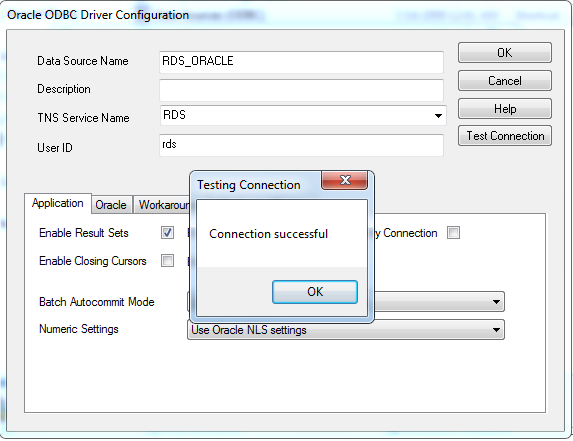
- Once you have successfully tested the ODBC driver configuration, click on OK to save it. You will now be able to configure TEAMS-Designer to import and export models to an Oracle database.
Does TEAMS software suite support internationalization (international languages)?
July 17, 2013
Comments are off
Beginning with version 11, the TEAMS software suite introduced Unicode fonts support. This allows users to add content in any language supported by their currently installed Unicode fonts. Once a model has been exported to a TEAMS-RDS server, translators may add several end-user translations of the model’s diagnosis content via a web interface.
Notes:
In order to view Unicode characters in other languages, a Unicode font supporting the required ranges must be installed on the computer. These fonts are used to display character data in the reports generated by the TEAMS software suite. One such popular font is the MS Arial Unicode font; it supports a wide range of Unicode characters. By default, it is installed as part of the Microsoft Office setup. It may also be bought separately from Microsoft; a quick web search will provide the necessary link.
What should I do when the TEAMS-RDS service “TEAMS-RDS – Tomcat” fails to start?
March 25, 2013
Comments are off
The two most common reasons “TEAMS-RDS – Tomcat” fails to stare are:
- Java got corrupted during an automatic update
- Port 80 is being used by another service, such as IIS, Apache HTTPD, etc…
Corrupted JRE Installation
To test whether Java is corrupt or not, follow the steps below:
- Open a Command Prompt “Start -> Programs -> Accessories -> Command Prompt“
- Enter the following command “java -version“.
- If the following error message “Error occurred during initialization of VM <linebreak> java/lang/NoClassDefFoundError: java/lang/Object” is displayed then the Java Runtime Environment (JRE) is corrupt.
To fix the corrupt JRE, stop all TEAMS-RDS Services by selecting “Start -> Programs -> TEAMS-RDS -> Stop TEAMS-RDS Services” from the Start menu. Un-install JRE and then download the latest 32-bit JRE version (currently version 1.7 as of this writing) from Oracle located here and install it. Upon completing the re-installation, start all the TEAMS-RDS services by selecting “Start -> Programs -> TEAMS-RDS -> Start TEAMS-RDS Services” from the Start menu.
Port 80 Taken By Another Service
Figuring out which application or service is bound to port 80 is beyond the scope of this document. Once you figure out the program that is bound to port 80, stop that process or service and prevent that process or service from starting. To stop a service, go to the Services control panel “Control Panel -> Administrative Tools -> Services“. The Services control panel displays the status of all the services installed on the computer. One of the most common culprit is Microsoft Internet Information Services (IIS). For IIS you would set service ‘World Wide Web Publishing’ to start manually or disable it. Select the service, right-click and select Properties from the menu. Select “Manual or Disabled” from the drop-down menu for the service’s start-up type options and click “Ok” to finish. If you set the start-up type to “Manual“, you may need to stop the service by right-clicking on it and selecting “Stop” from the menu. Re-start the TEAMS-RDS services and open the log-in page to verify its operating correctly.
What should I do before installing an Oracle Java update?
March 22, 2013
Comments are off
Follow the procedure below to update Oracle’s Java:
- Stop all TEAMS-RDS services. Select “All Programs -> TEAMS-RDS -> Stop TEAMS-RDS services” from the Start menu.
- Verify all the services are stopped. Go to “Control Panel -> Administrative Tools -> Services” and verify all the TEAMS-RDS services are stopped.
- Install the Oracle Java update.
- Upon the completion of the update, start the TEAMS-RDS services. Select “All Programs -> TEAMS-RDS -> Start TEAMS-RDS services” from the Start menu.
Do I need to send the outcomes of all the tests each time I send test results to TEAMS-RT?
February 19, 2013
Comments are off
You do not need to send all the test outcomes each time you update TEAMS-RT, just send those you currently have available. TEAMS-RT will only update the failure modes detected by the set of test updates it receives, the rest will remain in their current state.
Note
By default all the failure modes start in the unknown state.
The PDF diagnostic tree is missing characters?
February 15, 2013
Comments are off
The Arial Unicode MS (ARIALUNI.TTF) font allows the display of characters in most languages. QSI software does not bundle the Arial Unicode font. If you are developing models in international languages, such as Chinese, we recommend installing this font (if not already installed on your system). Unicode fonts are required to view the Unicode characters properly in the PDF reports generated as part of the TEAMS-Designer analyses. This font is installed as part of the Microsoft Office setup, it is also available for purchase online.
Why does is the PDF diagnostic tree not being generated?
February 15, 2013
Comments are off
In order to generate the PDF diagnostic tree, Microsoft .NET Framework 4.5 32-bit must be installed on your computer. If it;s not installed, it is available by Microsoft at http://www.microsoft.com/en-us/download/details.aspx?id=30653.
© 2025 Qualtech Systems, Inc